Group Users are setup in Administration and serve a variety of purposes. Most common are if you send a general letter like a Claim Acknowledgement and want for any user to be able to sign as a department instead of an individual user. Another scenario might be when you onboard Independent Adjusters (IAs) and want them to sign as a Group User rather than themselves.
Below, we're going to talk about how to set up a Group Signer account, and the 3 types of use-cases for Group Signers, and how to arrange them.
Setting Up a Group User
First, confirm with your Claims Letters Account Manager that Group Signer functionality is available on your account.
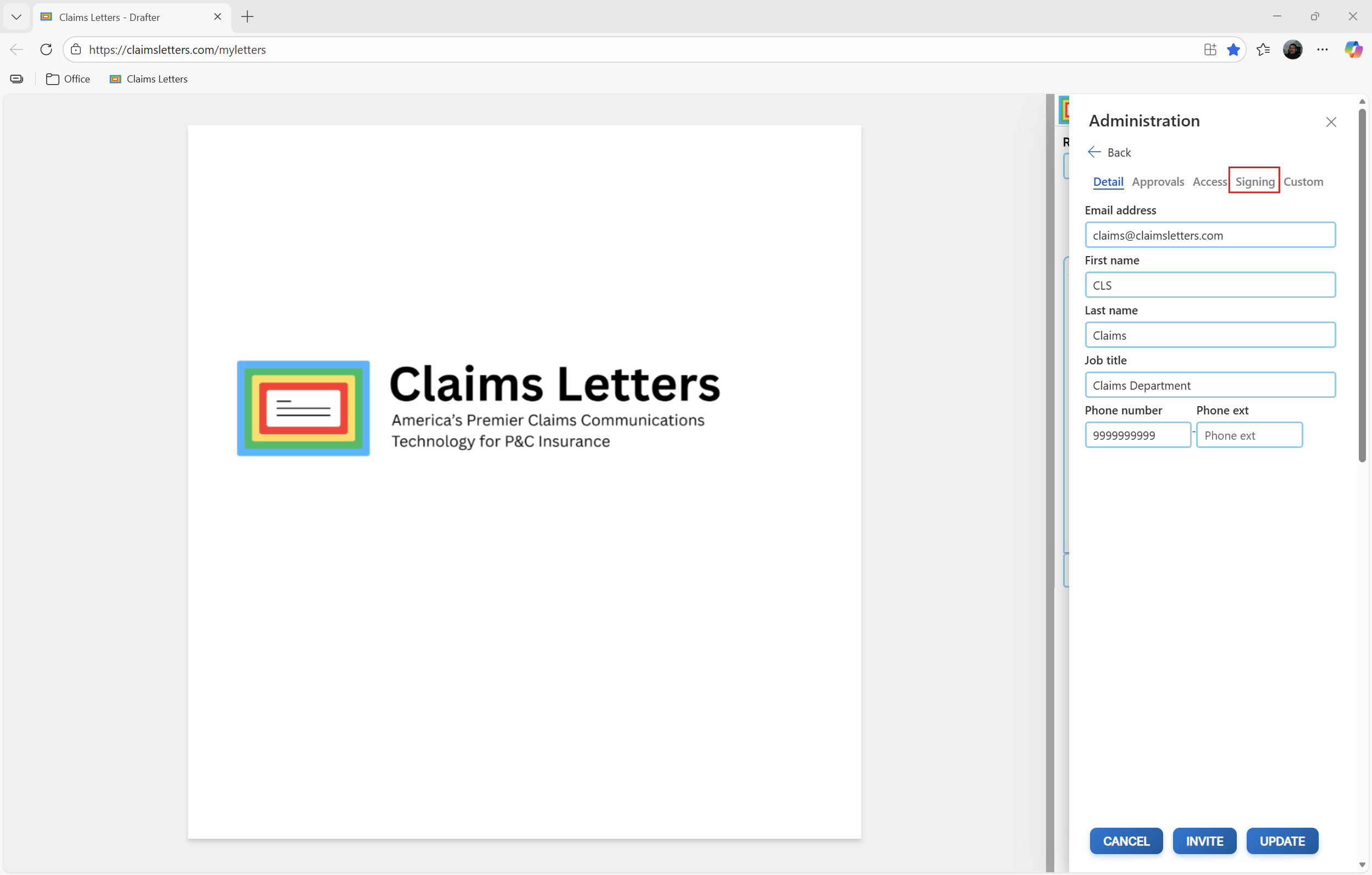
To set up a Group Signer, you just make a new user or go to an existing user. When viewing this user's profile, you will see the "Signing" tab:
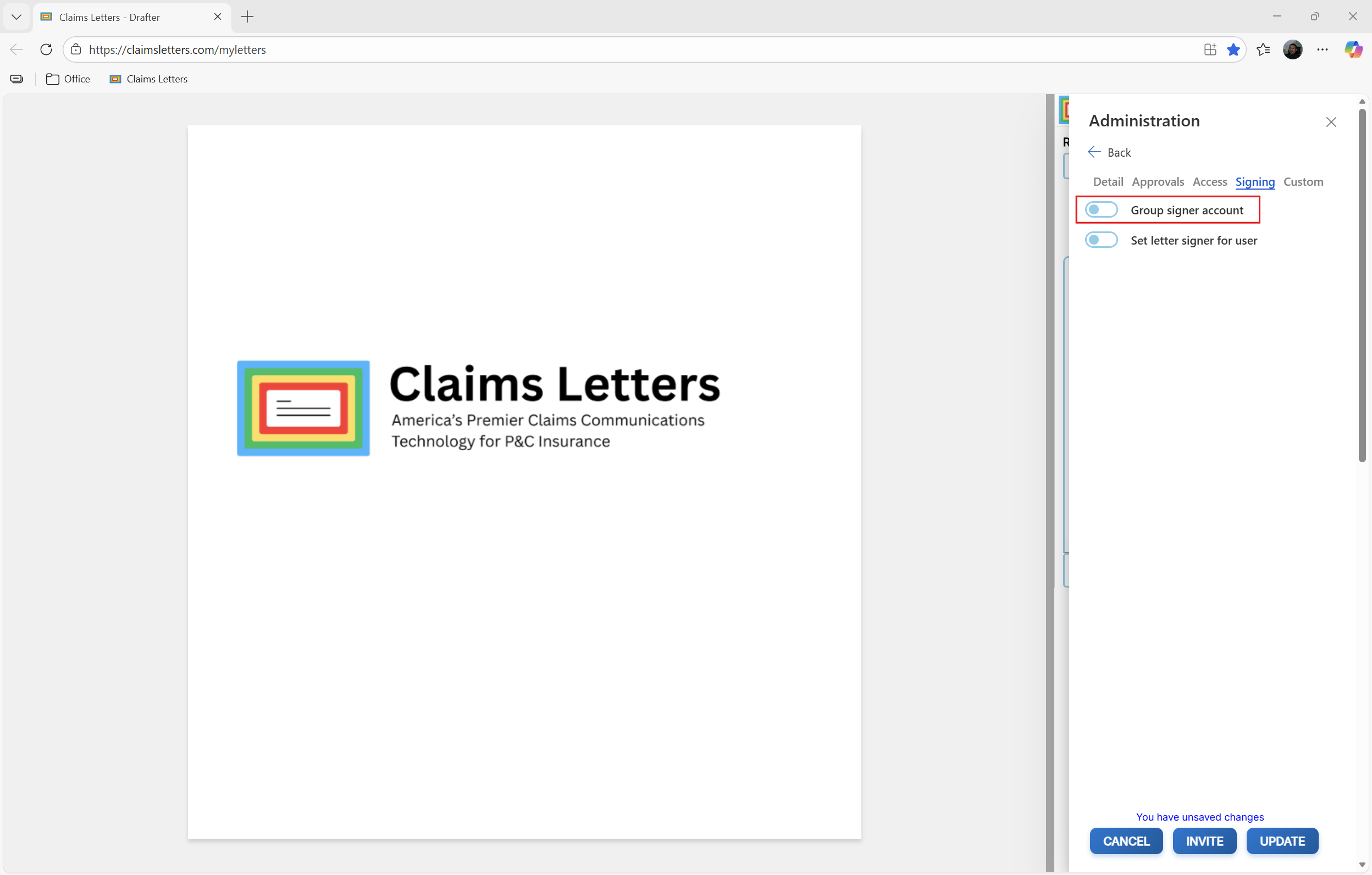
In the "Signing" tab, if you toggle-on the option for "Group signer account", this user will now become a 'Group User':
How to Use Group Users
There are 3 ways Group Users are leveraged in Claims Letters:
Individual Group Signer (Optional)
- Any individual user on your team can sign a letter as a company's Group User. This does not change ownership of the letter - it simply changes the signature of the letter so it appears to be sent from the Group User rather than the individual user.
- This may be useful for something like a 'Claim Acknowledgement' which is for a claim that does not yet have an assigned Adjuster
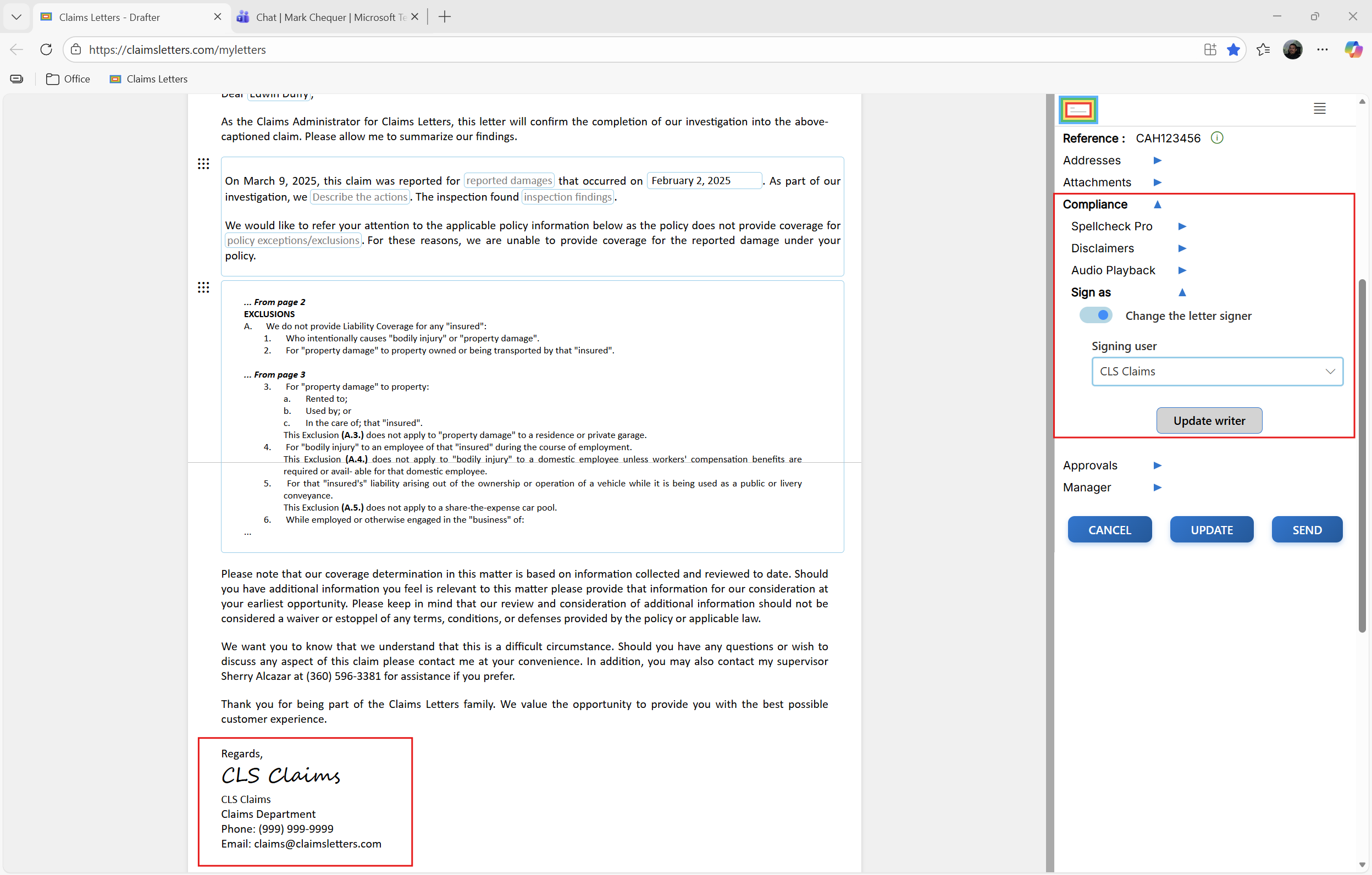
- To use this feature: while writing a letter, go to the Compliance section in the Control Panel and open the "Sign as" option. Here you will be able to change the letter signer to a Group User
Individual Group Signer (Mandatory)
- Any individual user on your team can be set up to sign letters as a Group User by default. This does not change ownership of the letter - it simply changes the signature of the letter so it appears to be sent from the Group User rather than the individual user.
- This may be useful for when working with Independent Adjusters (IAs) who you would prefer to have sign as the generic company, rather than in their unaffiliated
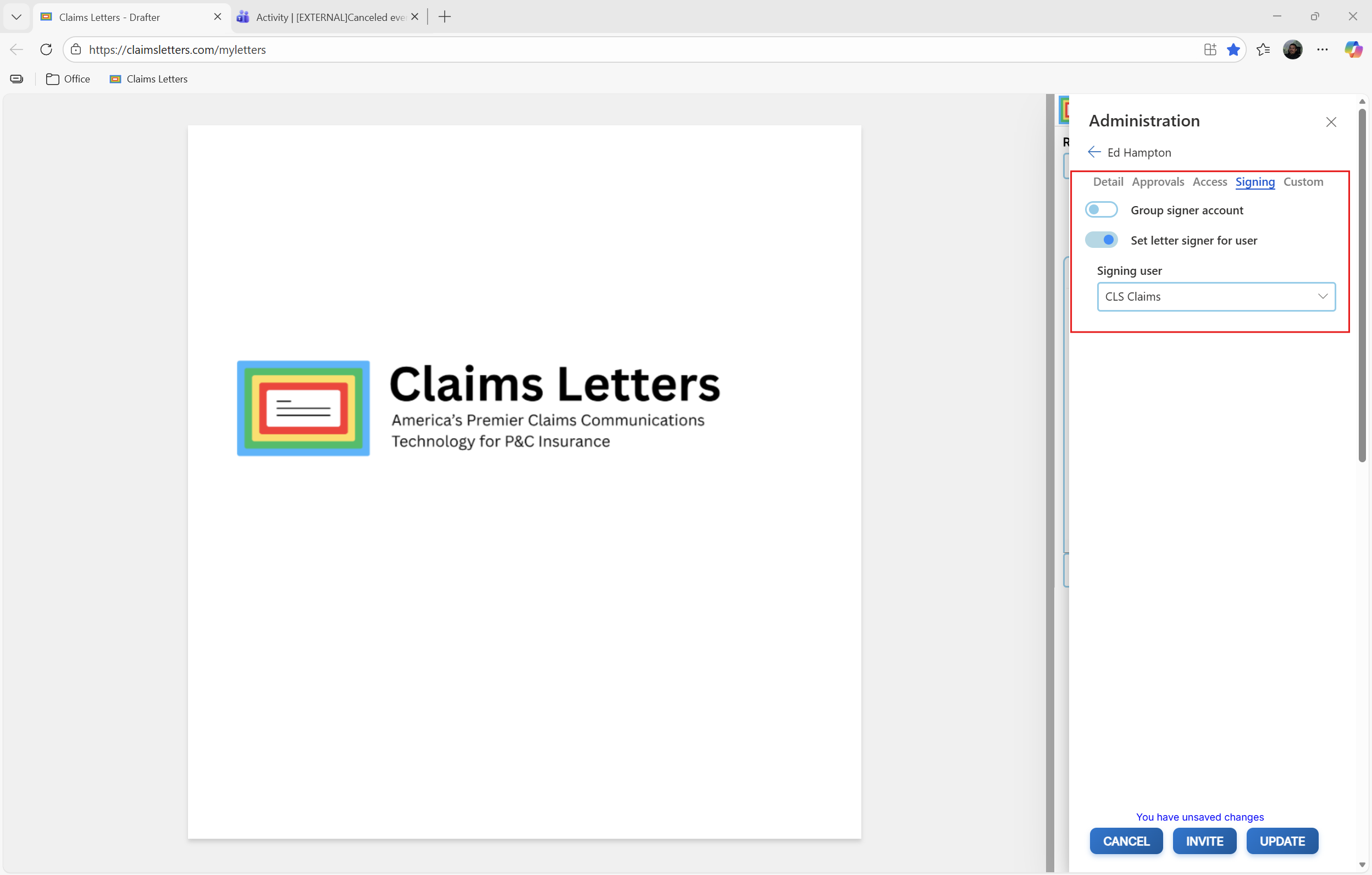
- To use this feature: when setting up the user you would like to sign as a particular Group User by default, Toggle-On the "Set letter signer for user" option in the user settings "Signing" tab
Group Group Signer (Mandatory)
- An entire Group can be setup to sign letters as a Group User by default. This does not change ownership of the letter - it simply changes the signature of the letter so it appears to be sent from the Group User rather than the individual user.
- This may be useful during a Catastrophe situation when you need to bring on many Independent Adjusters (IAs). You might put them in a group and have all of their letters be signed "Fire Team 1".
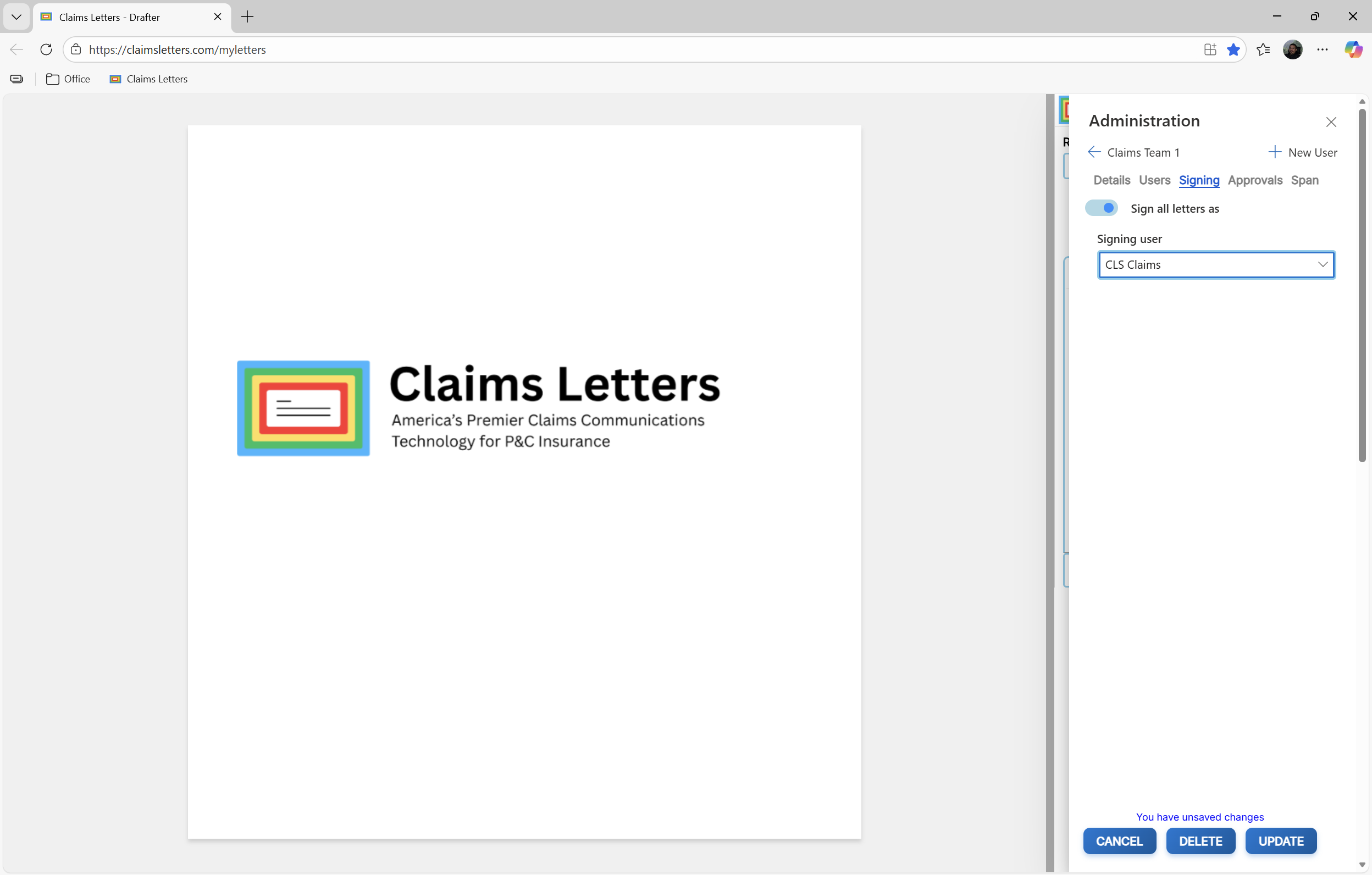
- To use this feature: In any group's settings you can access the "Signing" options tab. From there you can Toggle-On "Sign all letters as" and select the Group User you would like them to sign as.
Was this article helpful?
That’s Great!
Thank you for your feedback
Sorry! We couldn't be helpful
Thank you for your feedback
Feedback sent
We appreciate your effort and will try to fix the article